00:00:00

Save up to 72% OFF

Log in
Hailuo 03Text to VideoImage to Video
FLUX 3 AI Video Generator

Explore the FLUX 3 Video rollout and turn a prompt or image into an AI video. This independent generator shows the selectable model, output settings, and credit estimate before every job.

At least 3 characters
Action Clip

Gravity-Line Coast Shot

Prompt a low follow camera, one downhill carve, wind-reactive clothing, and a stable ocean horizon for a readable vertical action beat.

Use this prompt
Product Macro

Cold Texture Product Loop

Keep the package readable while condensation, a controlled splash, and moving highlights create a short seamless product loop.

Use this prompt
Nature Clip

Layered Forest Motion

Separate foreground leaves, falling water, drifting mist, and a slow camera rise so every layer moves at a believable speed.

Use this prompt
Brand Reveal

Packaging-to-Feed Transition

Begin from a branded still and specify the opening action, product hold, lighting sweep, and final social-ready composition.

Use this prompt
Lifestyle Ad

One-Take Golden-Hour Toast

Direct a restrained camera arc, natural glass movement, wind, and changing sunset reflections in one continuous lifestyle shot.

Use this prompt

Independent FLUX 3 Video workspace

Turn one idea into a directed AI video

Start with a prompt or reference image, choose the available settings, and test the shot before increasing duration or quality.

FLUX 3 Video status guide

What is FLUX 3 Video, and what is available now?

Black Forest Labs announced FLUX 3 Video in Early Access on July 23, 2026. Use this independent workspace with currently available models, or open the guide for verified rollout sources.

One useful guide for release and access questions

FLUX 3 Video, Early Access, API, open weights, GitHub, Hugging Face, download, and ComfyUI searches belong to one evolving topic. We consolidate them instead of publishing thin keyword variations.

Official capability versus availability here

Flux3Video.art is independent of Black Forest Labs. An official capability, a planned rollout, and a model that is actually selectable on this site are different claims; check the displayed model before generation.

How to use this AI video workspace

Start with text-to-video or image-to-video, then review the actual model label, controls, and credit estimate. A site plan or queue name does not prove access to the official FLUX 3 API.

  1. 1

    Choose text or image to video

    Begin from a written scene when composition is open, or upload an image when identity, layout, or product details should stay recognizable.

  2. 2

    Direct the motion

    Describe the subject, action, shot order, camera movement, lighting, timing, and sound. Explain what each reference should control.

  3. 3

    Review settings and generate

    Confirm the selected model, duration, ratio, resolution, audio option, and credit estimate before submitting the job.

FLUX 3 AI video workflows

FLUX 3 Video workflows for text, images, and motion

Plan a FLUX 3 text-to-video or image-to-video shot, direct the motion, and use the independent generator to review the model and settings actually available before you create.

FLUX 3 text to video

Write a FLUX 3 text-to-video prompt as one filmable shot: name the subject, visible action, camera path, lighting, sound, and pace.

FLUX 3 image to video

Use a FLUX 3 image-to-video workflow when a face, product, illustration, or composition should anchor the generated movement.

Reference and motion control

Separate subject action, camera movement, environmental behavior, audio cues, and fixed constraints so the AI video prompt has clear priorities.

Visible settings and credit estimate

Review the model label and controls shown in this AI video generator—not an assumed FLUX 3 specification—for ratio, duration, resolution, audio, and credits.

Examples and prompts

FLUX 3 Video prompt examples for text and image to video

Use these AI video prompt examples to direct subject motion, camera movement, lighting, audio, and pacing. They teach a FLUX 3 workflow and do not label unverified clips as official BFL outputs.

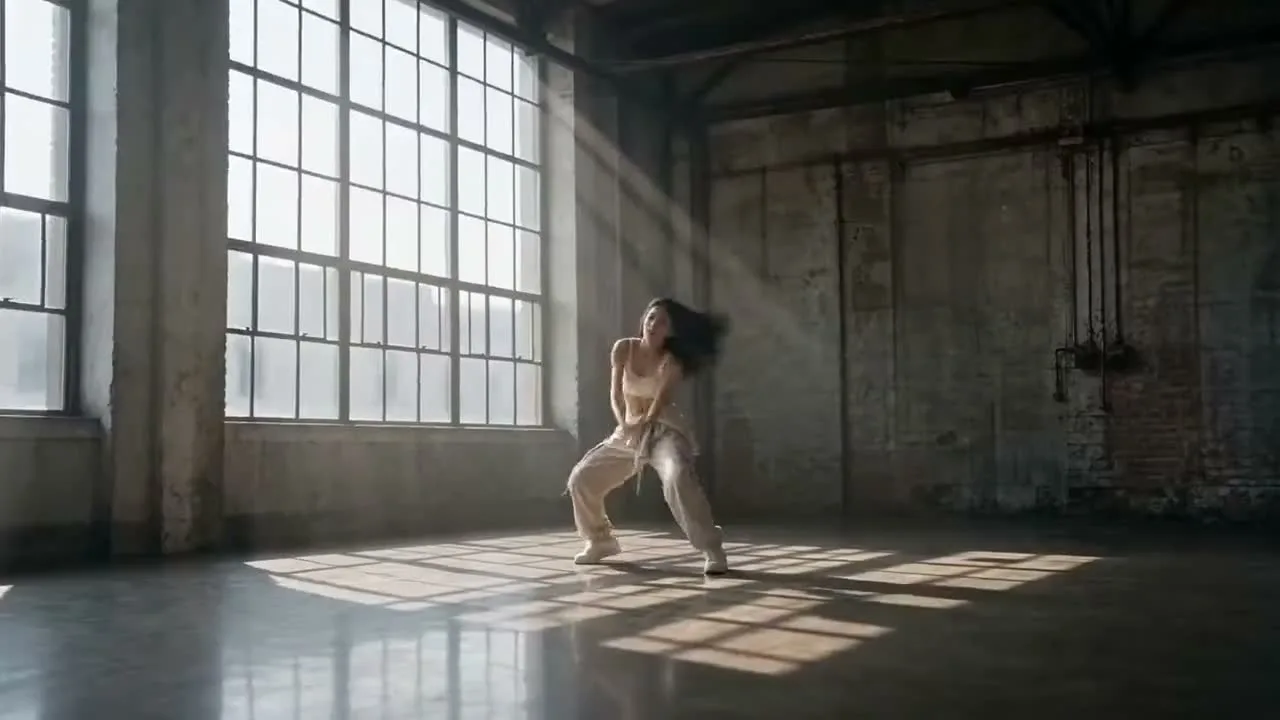
Freeze, Signal, Release
Short Film15s
720p

Freeze, Signal, Release

Structure a text-to-video prompt as three visible beats: celebration in motion, a sudden suspended moment, then one signal that releases the scene.

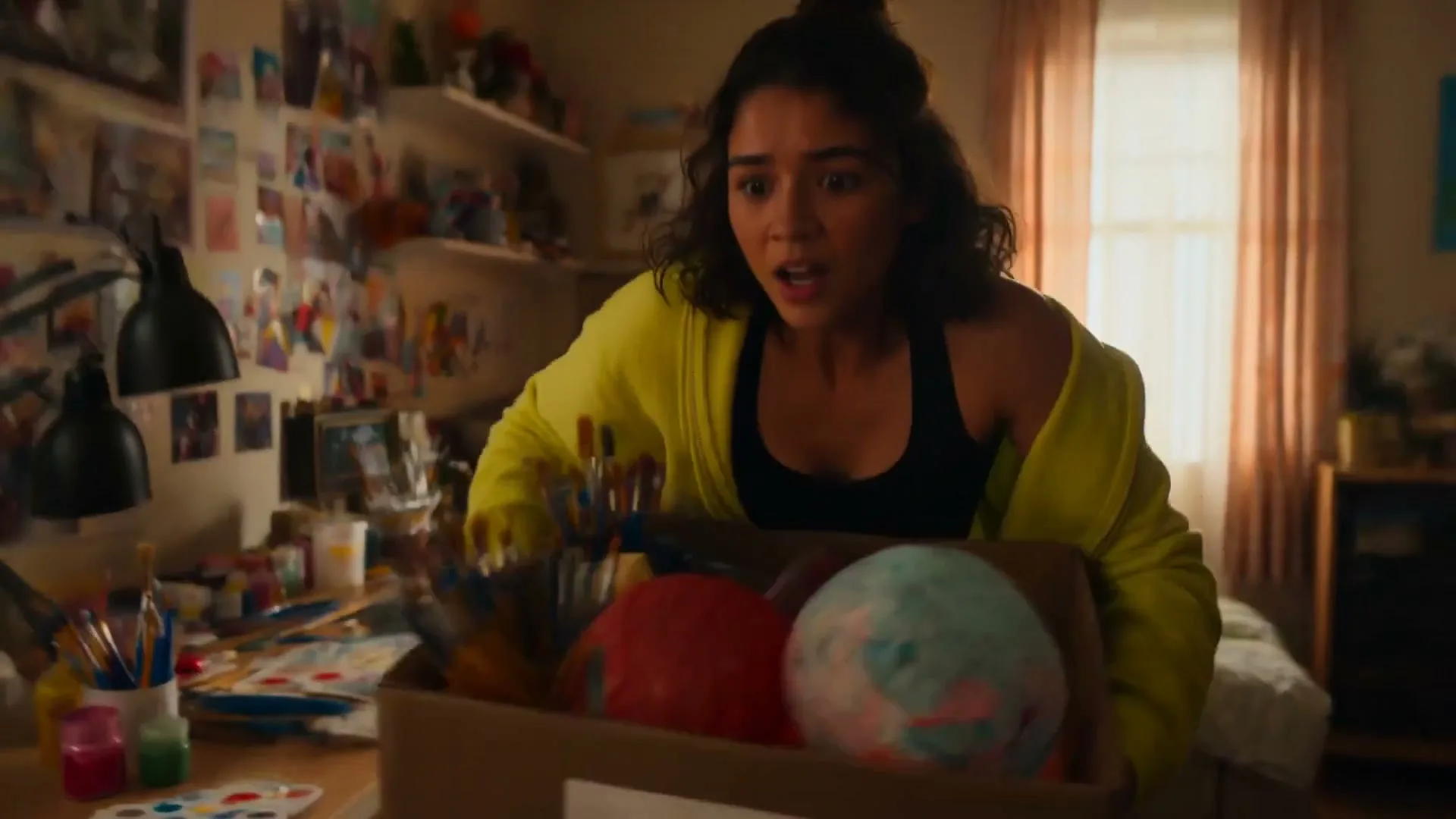
Reference-Led Product Reveal
Launch Teaser12s
1080p

Reference-Led Product Reveal

Anchor the product with a source image, then assign separate instructions to the camera push, moving highlights, surface reflections, and end frame.

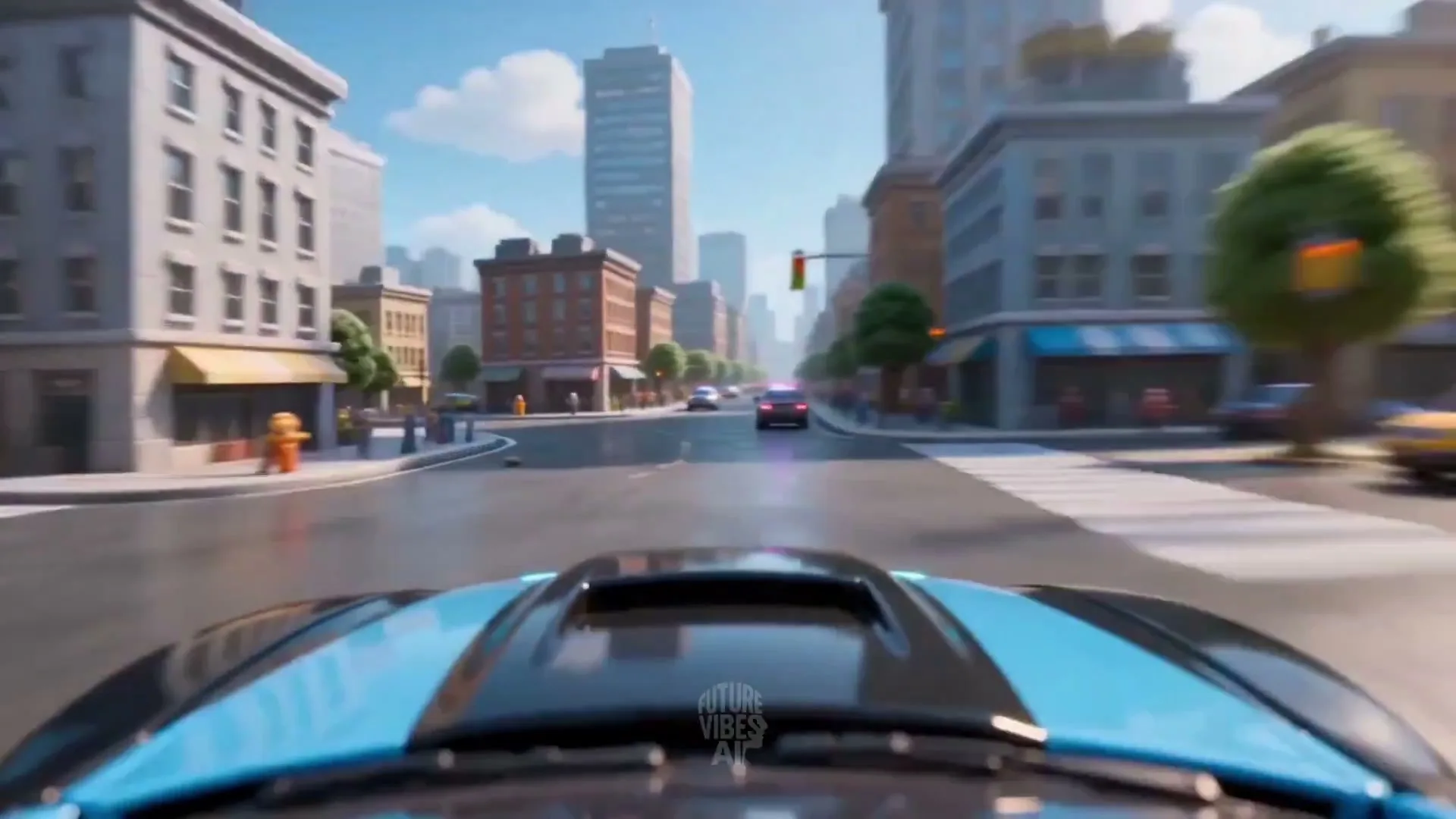
Vertical Chase Beat
Action Comedy15s
1080p

Vertical Chase Beat

Design one readable pursuit for a vertical frame, using foreground passes and a short camera move instead of stacking multiple action scenes.

Reverse-Time City Transition
Cinematic15s
1440p

Reverse-Time City Transition

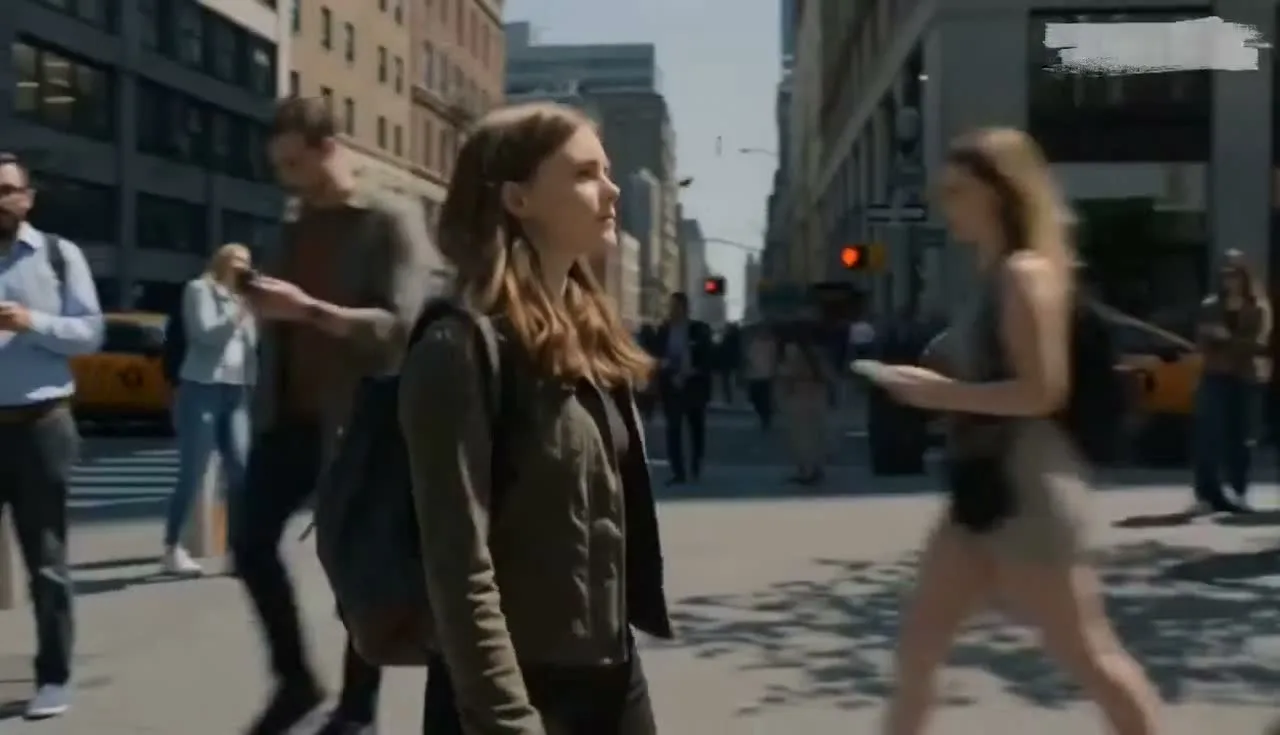
Define which traffic, people, particles, and camera elements stop or reverse so the transition has a clear visual hierarchy.

Scale Shift Above Water
Surreal10s
720p

Scale Shift Above Water

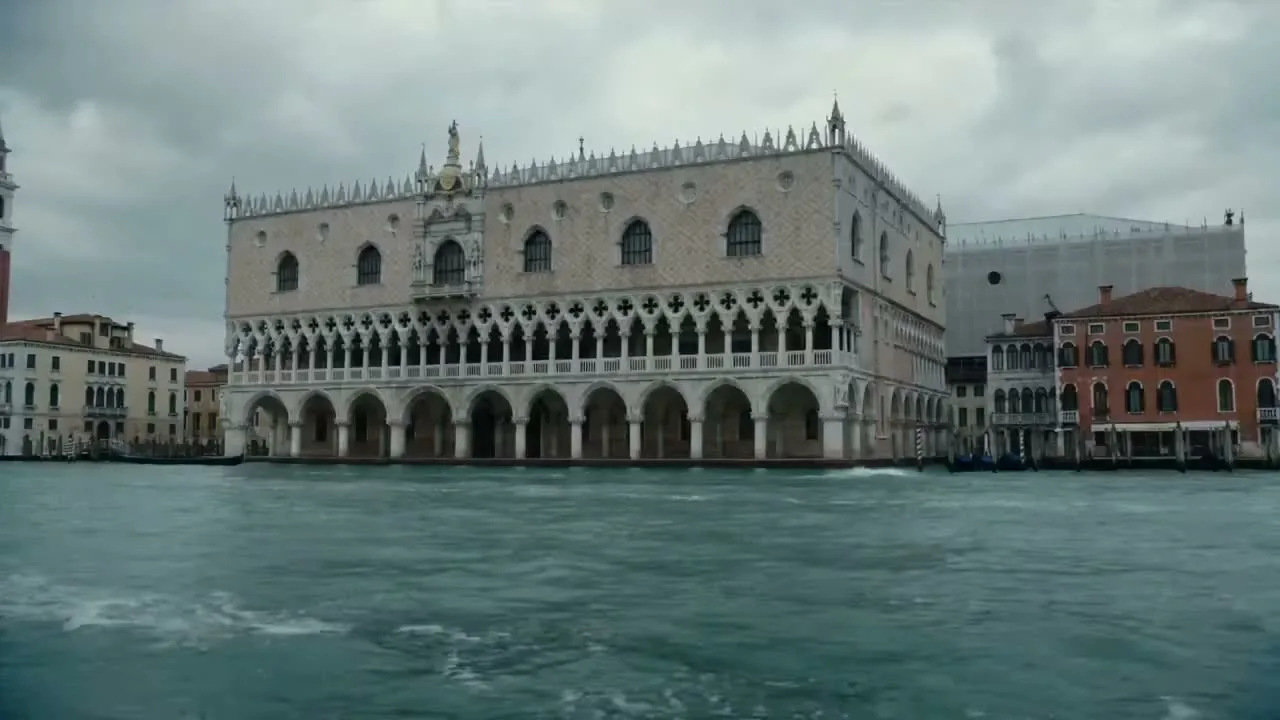
Use architecture and water as scale references while one surreal subject changes size during a controlled aerial camera move.

Three-Beat Storm Dialogue
Story Clip15s
1440p

Three-Beat Storm Dialogue

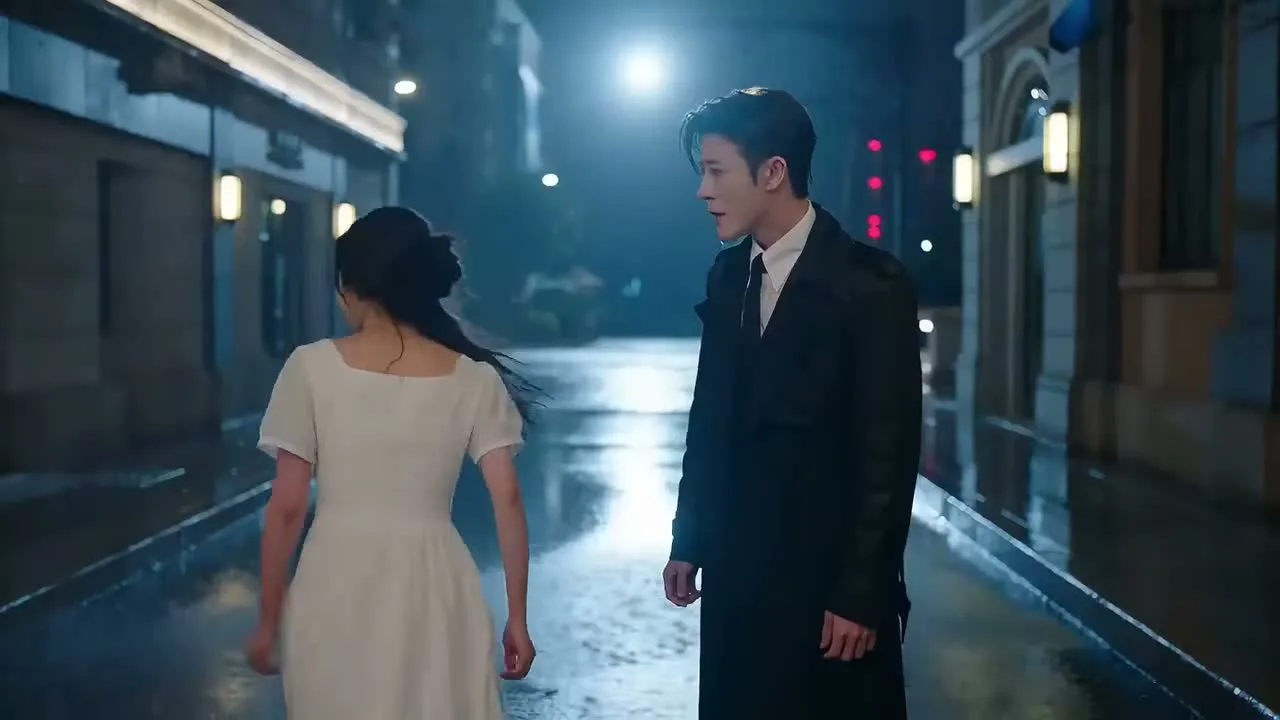
Plan an establishing frame, an emotional close-up, and one reaction shot, with rain direction and lighting continuity written into the prompt.

FAQs

FLUX 3 AI Video Generator FAQs

Straight answers about FLUX 3 Video, text-to-video, image-to-video, free starter access, platform pricing, generation time, and the official rollout status.

What is FLUX 3 Video?

FLUX 3 is Black Forest Labs’ multimodal foundation model, jointly trained across images, video, and audio. Official Early Access materials describe text-to-video, image-to-video, video references, keyframes, native audio, multilingual dialogue, and clips up to 20 seconds.

How do I use this FLUX 3 AI video generator?

Choose text-to-video or image-to-video, add a prompt and any supported reference, then review the exact selectable model, output settings, and credit estimate. FLUX 3 Video is still rolling out, so the displayed model is the source of truth for each job.

Should I use text to video or image to video?

Choose FLUX 3 text to video when the model should compose a scene from words. Choose FLUX 3 image to video when a portrait, product, character, or existing frame should guide identity and composition.

How should I write a FLUX 3 Video prompt?

Describe one filmable scene with a clear subject, action, setting, camera movement, lighting, audio, and pace. For image to video, focus on what changes and what must remain fixed instead of repeating everything already visible.

Is the FLUX 3 AI video generator free?

Eligible accounts can receive the limited Flux 3 Free benefit or starter credits shown in the product. Free limits, queue rules, output settings, and any watermark are displayed before generation; this is not unlimited official BFL access.

Is Flux3Video.art an official Black Forest Labs website?

No. Flux3Video.art is an independent AI video workspace and rollout resource, not operated by, affiliated with, endorsed by, or sponsored by Black Forest Labs.

How much does AI video generation cost here?

Flux3Video.art shows a platform credit estimate before submission. The actual model, duration, resolution, audio, and plan affect it; these credits are separate from Black Forest Labs API pricing or future local-compute costs.

How long does an AI video take to generate?

Generation time changes with the selected model, settings, queue, and provider load. Keep the task page open or return to creation history to check progress instead of submitting the same job again.

Create your first video with Flux3Video.

Start with FLUX 3 text-to-video or image-to-video prompting, verify the available model and credit estimate, then generate a short test.